

TL;DR
|
This is a secure RDP Windows Server dedicated setup for one host that faces the internet, with a way back in after every step.
The steps are written against Windows Server 2022 and 2025, both of which Microsoft’s guide to changing the Remote Desktop listening port applies to. Our guide to managed vs unmanaged dedicated servers sets out who carries which job.
BEFORE YOU START
|
CRITICAL
|
Step 1: Require Network Level Authentication
Microsoft’s policy reference lists the NLA setting as a way to limit which clients can connect.
Open gpedit.msc and go to Computer Configuration\Administrative Templates\Windows Components\Remote Desktop Services\Remote Desktop Session Host\Security. Record the current setting first. Set Require user authentication for remote connections by using Network Level Authentication to Enabled.
Check: Does Remote Desktop Connection (mstsc.exe) ask for credentials before any remote screen appears?
Wrong result: If the server’s sign-in screen appears first, is the setting Enabled in the applied policy?
Rollback: From the console, set the policy back to the recorded setting.
Step 2: Use a Named Admin Account and Keep Administrator off RDP
Precondition: each administrator’s named account signs in over RDP.
Open Local Security Policy (secpol.msc), go to Local Policies, then User Rights Assignment. Add the built-in Administrator account to Deny log on through Remote Desktop Services.
Check: Try RDP as the named account, RDP as Administrator, and a console sign-in as Administrator. The test passes if the first works, the second is refused and the third works.
Wrong result: If the named account is refused too, does the Deny right contain a group that the account belongs to?
Rollback: From the console, remove Administrator from Deny log on through Remote Desktop Services.
Step 3: Turn On Account Lockout
In gpedit.msc, go to Computer Configuration, Windows Settings, Security Settings, Account Policies, Account Lockout Policy. Record the current values, then set these three policies to your own values:
- Account lockout threshold
- Account lockout duration
- Reset account lockout counter after
Check: With a test account, enter wrong passwords up to the threshold. Does the right password fail once the threshold is reached, and for how long?
Wrong result: If the right password still works, was the test made with a standard account rather than the built-in Administrator? Is the threshold above 0?
Rollback: From the console, set the three policies back to the values you recorded.
Step 4: Allow-List RDP on a Non-Standard Port
Microsoft states that Remote Desktop listens on port 3389 by default. First, in PowerShell as an administrator, record the current port:
Get-ItemProperty -Path 'HKLM:\SYSTEM\CurrentControlSet\Control\Terminal Server\WinStations\RDP-Tcp' -name 'PortNumber'
Next, create Transmission Control Protocol (TCP) and User Datagram Protocol (UDP) rules for the new port. This example uses Microsoft’s example port, 3390:
$portValue = '3390'
New-NetFirewallRule -DisplayName 'RDPPORTLatest-TCP-In' -Profile Public -Direction Inbound -Action Allow -Protocol TCP -LocalPort $portValue
New-NetFirewallRule -DisplayName 'RDPPORTLatest-UDP-In' -Profile Public -Direction Inbound -Action Allow -Protocol UDP -LocalPort $portValue
Then scope both rules to your admin addresses. Set-NetFirewallRule accepts an address, a subnet or a range for RemoteAddress:
Set-NetFirewallRule -DisplayName 'RDPPORTLatest-TCP-In' -RemoteAddress '<office IP>','<admin IP>'
Set-NetFirewallRule -DisplayName 'RDPPORTLatest-UDP-In' -RemoteAddress '<office IP>','<admin IP>'
If another firewall sits in front, Microsoft notes that it has to permit the new port too. After that, set the port:
Set-ItemProperty -Path 'HKLM:\SYSTEM\CurrentControlSet\Control\Terminal Server\WinStations\RDP-Tcp' -name 'PortNumber' -Value $portValue
Finally, restart the server, as Microsoft’s Registry Editor steps say.
Check: Get-ItemProperty shows PortNumber : 3390. Connect in Microsoft’s format, pc1.contoso.com:3390. An attempt from outside the list should fail. Once the new port works, are the inbound rules for port 3389 disabled?
Wrong result: If an allowed address cannot connect, check the rule profile and any firewall in front.
Rollback: From the console, restore the recorded PortNumber value with Set-ItemProperty, then restart.
Step 5: Put a VPN or RD Gateway in Front
Microsoft says the RD Gateway role enables encrypted connections to Remote Desktop Services resources over the internet. With a VPN instead, run the step 4 Set-NetFirewallRule commands with the VPN address range as RemoteAddress.
For RD Gateway, this step covers only the gateway role and its certificate. RD Gateway needs the Remote Desktop Services role. Import a certificate in RD Gateway Manager, under the gateway’s Properties, on the SSL Certificate tab. Microsoft recommends a publicly issued certificate; a private one needs its trust chain on every client.
| WHAT TO VERIFY Who renews the gateway certificate, and when does it expire? |
Check: Does a session through the VPN or gateway open? With the VPN off, does a direct attempt fail?
Wrong result: If the direct attempt connects, which allow rule lets that address through?
Rollback: From the console, run the step 4 Set-NetFirewallRule commands again with your admin addresses.
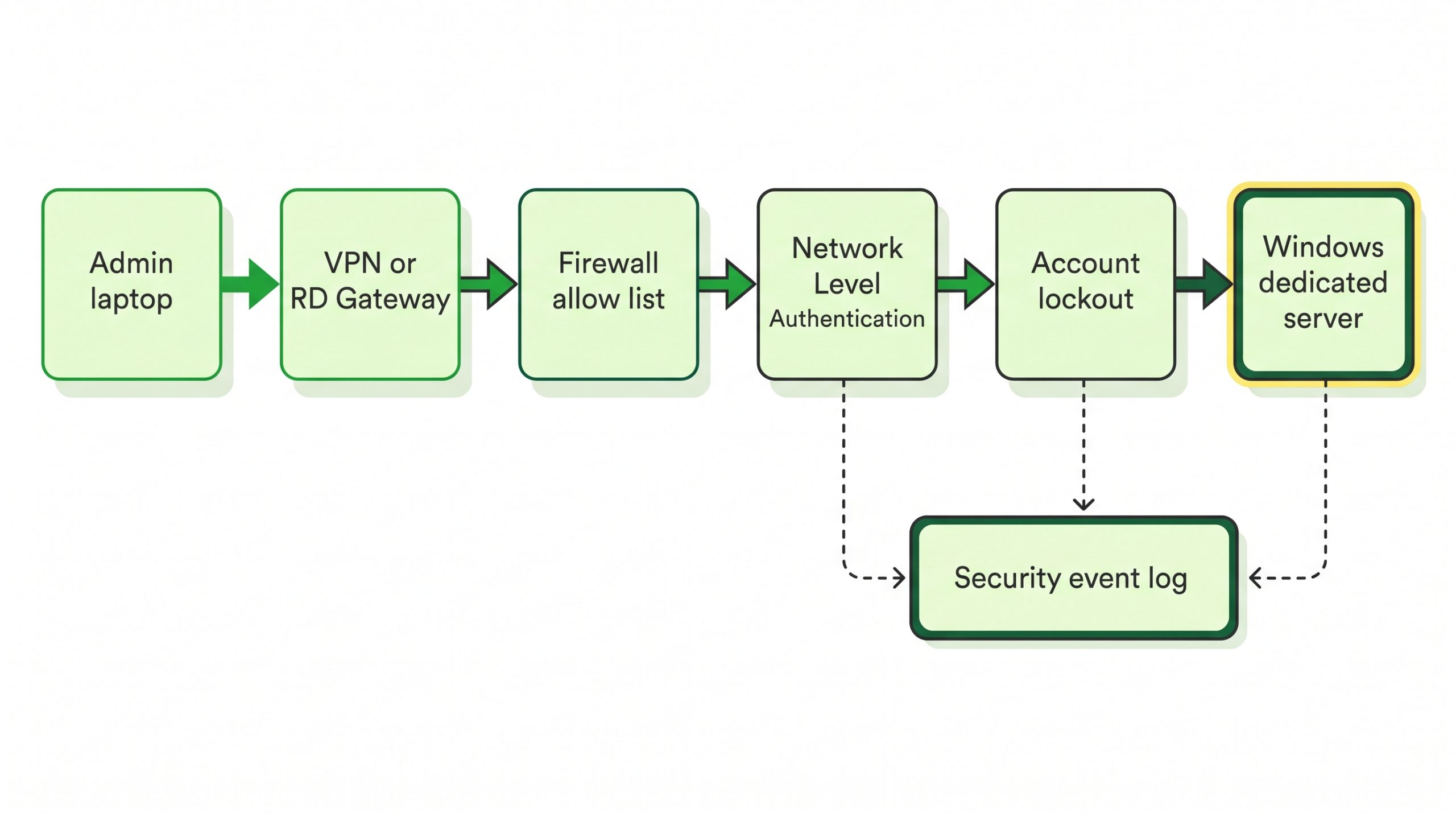
Figure 1. The path a Remote Desktop sign-in takes after steps 1 to 5, from the admin laptop through each control to the Windows dedicated server.
Step 6: Read the Security Log for Failed RDP Sign-ins
Windows logs event 4625 for any failed sign-in. Are Audit Logon and Audit Account Lockout both enabled on this server? In Event Viewer, open Windows Logs, then Security, and filter on event ID 4625.
| Field | Value | Meaning |
|---|---|---|
| Logon Type | 10, RemoteInteractive | Sign-in through Terminal Services or Remote Desktop |
| Source Network Address | An IP address | Machine the attempt came from |
| Sub Status | 0xC000006A | Bad password; watch for several in a row |
Source: Microsoft, 4625(F) An account failed to log on, last updated 29 Mar 2026.
Check: With NLA on, do failed attempts on this server appear as Logon Type 3 or 10? Does any 4625 event show an address outside your allow list?
Wrong result: If one does, find the rule that lets it through and scope it again.
Is the server clock synchronised with Network Time Protocol (NTP)? Our post on Windows Server and the importance of NTP covers why event times depend on it. Does your monitoring send 4625 alerts to Slack or Telegram?
What to Check After
| Check | Command or page | Expected result |
|---|---|---|
| NLA | gpedit.msc, Security folder | Enabled; credentials asked first |
| Administrator | Step 2 sign-in test | Step 2 pass criterion |
| Lockout | Account Lockout Policy | Threshold, duration and reset counter set |
| Port | Get-ItemProperty PortNumber | New port, not 3389 |
| Firewall scope | RDPPORTLatest rules | Only your addresses or VPN range |
| Security log | Event ID 4625 | No source outside your list |
When to Stop and Hand Over
If a sign-in still fails after a step’s rollback, who comes next: a managed support team or a named administrator?
Our post on the emergency patching SLA for managed servers covers who applies out-of-cycle fixes.
FAQs
Does changing the RDP port stop brute force attacks?
This setup does not rely on the port change alone. Microsoft’s guide describes the change as altering the port Remote Desktop listens on, which is specified in the registry. Here it is one control, next to the lockout in step 3 and the allow-list in step 4.
Do I need a VPN if I use RD Gateway?
Microsoft says RD Gateway lets users reach internal resources from remote locations without the need for a VPN. Step 5 works with either one in front.
The Result
The server now requires NLA, applies your lockout values and allows only your listed addresses on a port you chose.
| NEXT STEP Planning a new Windows host for this setup? Compare configurations on our dedicated and bare metal servers page. |