TL;DR
|
An application runs on your server, but nobody outside can reach it. This guide shows how to open port on dedicated server ufw firewalld Windows Firewall setups, limit who can connect and prove it works. It was written against Ubuntu Server 24.04 Long Term Support (LTS) with ufw, Windows Server 2022 or 2025, and AlmaLinux 9 using the upstream firewalld manual.
Our owner’s checklist for managing your own dedicated server covers turning ufw on and limiting Secure Shell (SSH) to one address. This post adds one application port.
BEFORE YOU START
|
CRITICAL
|
Step 1: Check the Service Is Listening on the Right Address
Is the application listening on the port that the firewall rule opens? On Linux, run sudo ss -tlnp on the server.
In the ss manual, -t selects Transmission Control Protocol (TCP) sockets, -l shows only listening sockets, -n keeps ports numeric and -p shows the process. Look for 0.0.0.0:8080, [::]:8080 or the server’s public IP next to your application’s process.
Is there a line for the port? If not, is the application running and using this port? Does the line show 127.0.0.1:8080 instead of 0.0.0.0:8080? If so, check the bind address in the application’s configuration.
On Windows, run Test-NetConnection -ComputerName localhost -Port 8080 on the server. The output should end with TcpTestSucceeded : True. If it shows False, is the service running and set to this port?
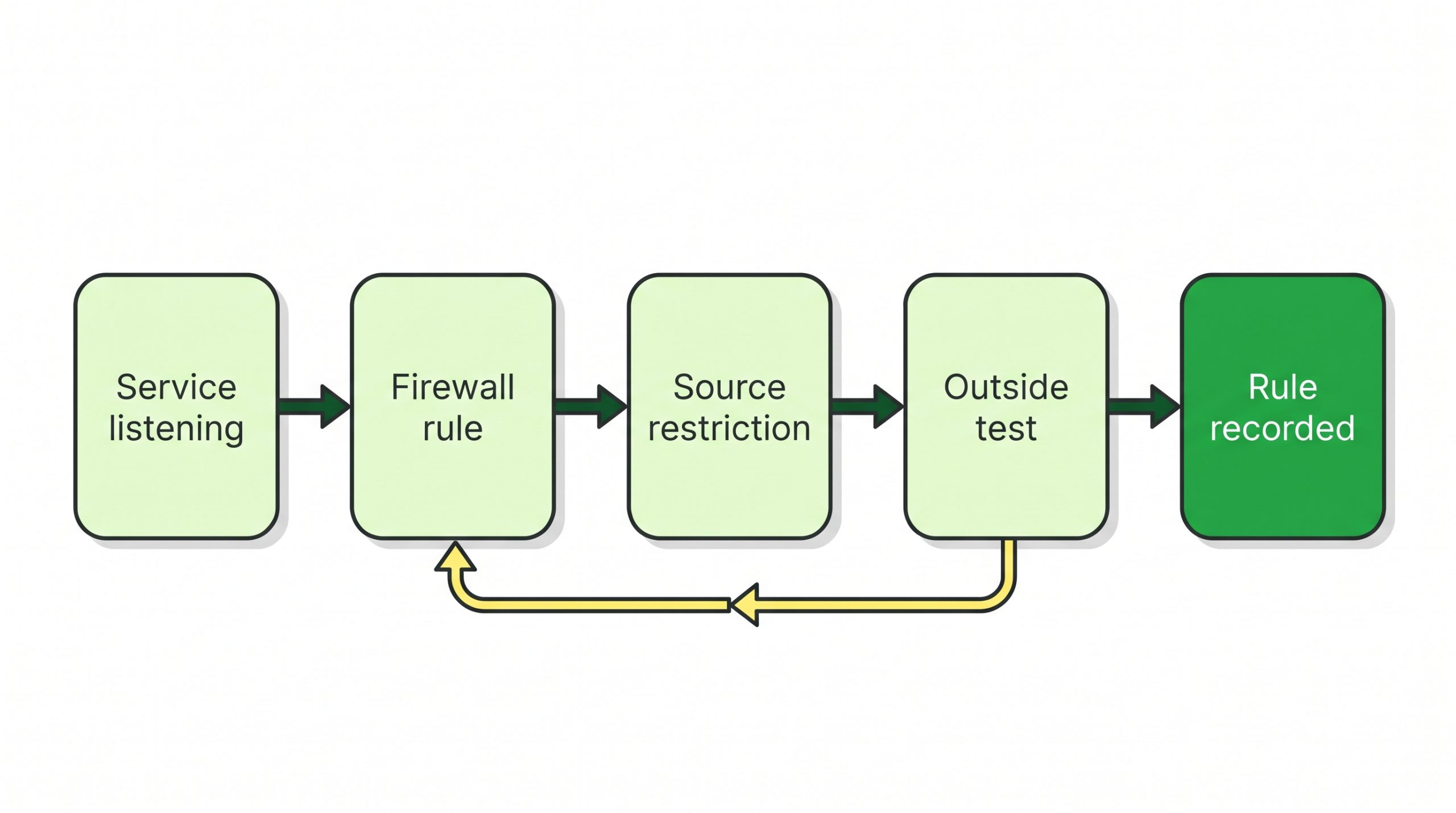
Figure 1. The order of the job: Service listening, Firewall rule, Source restriction, Outside test and Rule recorded. After a failed Outside test, is the Firewall rule listed and correct before any wider opening is considered?
Step 2: Open the Port on a Dedicated Server in ufw, firewalld or Windows Firewall
Which addresses use the port: an office, a virtual private network (VPN) or a partner? Or is it a public website on 443 with no fixed client list? The examples use 203.0.113.10 as the allowed client; replace it with your own address.
ufw on Ubuntu
Check the state with sudo ufw status verbose. The Ubuntu Server documentation notes that ufw is initially disabled, so an inactive result means the CRITICAL line applies. Canonical’s --dry-run option prints the resulting rules without applying them, so preview first:
sudo ufw --dry-run allow proto tcp from 203.0.113.10 to any port 8080
sudo ufw allow proto tcp from 203.0.113.10 to any port 8080
For a public site, use sudo ufw allow 443. Then run sudo ufw status numbered and look for 8080 with your source address. If an older line allows 8080 from Anywhere, it still admits everyone, so delete it as in Step 4.
firewalld on AlmaLinux
Run sudo firewall-cmd --state, which prints the daemon state. Then sudo firewall-cmd --get-active-zones shows the zone that holds the public interface; the examples assume public.
sudo firewall-cmd --zone=public --add-rich-rule='rule family="ipv4" source address="203.0.113.10" port port="8080" protocol="tcp" accept'
sudo firewall-cmd --zone=public --add-port=443/tcp
The firewall-cmd manual lists –add-rich-rule and –add-port. The firewalld.richlanguage manual page defines the rule family, source address, port and accept elements of the first line. Line two opens 443 to all addresses.
Both commands change only the runtime configuration. In the firewall-cmd manual, a reload replaces runtime with permanent configuration. So if Step 3 fails, sudo firewall-cmd --reload discards the test rule.
Check with sudo firewall-cmd --zone=public --list-all. The rich rules line should show your rule. If the ports line also lists 8080/tcp, the port is open to everyone; remove it with --remove-port=8080/tcp.
Windows Firewall on Windows Server
In PowerShell as Administrator, run:
New-NetFirewallRule -DisplayName "Allow App 8080" -Direction Inbound -Protocol TCP -LocalPort 8080 -RemoteAddress 203.0.113.10 -Action AllowMicrosoft’s command line guide says a rule created this way becomes effective immediately. For a public site on 443, does the rule need -RemoteAddress at all? Does the new rule cover the Domain, Private or Public profile of the server’s internet-facing network?
Step 3: Test Reachability From Outside the Server
Does the port also answer from a client outside the server? Run this test from a Windows PC at the allowed address:
Test-NetConnection -ComputerName <server IP> -Port 8080Microsoft documents Test-NetConnection as supporting a TCP test, reported in the TcpTestSucceeded line. Expect True.
Next, repeat the test from an address outside the rule, such as a phone hotspot. For a restricted port, expect False. If the test from outside the rule returns True, does a wider rule or another network path still admit that address? Is the rule list in Step 2 checked?
If the allowed address gets False, does ss still show the port listening, and is the rule listed?
On firewalld, save the tested rule with sudo firewall-cmd --runtime-to-permanent, which writes the active runtime configuration over the permanent one.
Step 4: Record the Rule So It Can Be Rolled Back or Restored
Is there a change log off the server for each rule? Does it record the date, port, source, reason and owner, plus the add and undo commands?
| Firewall | Undo command | What it does |
|---|---|---|
| ufw | sudo ufw delete allow proto tcp from 203.0.113.10 to any port 8080 |
Removes the rule, using delete followed by the rule |
| firewalld | sudo firewall-cmd --permanent --zone=public --remove-rich-rule='rule family="ipv4" source address="203.0.113.10" port port="8080" protocol="tcp" accept' then sudo firewall-cmd --reload |
Removes the saved rule, then loads the permanent configuration |
| Windows, reversible | Disable-NetFirewallRule on the Allow App 8080 rule |
Leaves the rule on the system, disabled; Enable-NetFirewallRule turns it back on |
| Windows, final | Remove-NetFirewallRule -DisplayName "Allow App 8080" |
Removes the rule definition permanently |
Sources: Ubuntu Server documentation, firewall-cmd and firewalld.richlanguage manuals, Microsoft Learn command line guide.
Disabling the rule first is the reversible option, as Microsoft Learn’s command line guide describes.
| WHAT TO CHECK AFTER | Command or page | Expected result |
|---|---|---|
| Service listening | sudo ss -tlnp or Test-NetConnection to localhost |
Port on a non-loopback address; True |
| Rule present | sudo ufw status numbered, sudo firewall-cmd --zone=public --list-all or Get-NetFirewallRule |
Linux: one rule with your source, no Anywhere rule for a restricted port. Windows: is a rule with the display name Allow App 8080 listed? |
| Allowed and other source | Test-NetConnection from each | True from the allowed address, False from the hotspot |
| Saved rule on firewalld | sudo firewall-cmd --permanent --zone=public --list-all |
The rich rule is listed |
When to Stop and Hand Over
Is this a single service with a short list of known clients? If not, hand over.
- Is the port for a database or remote desktop that would be open to all addresses? Would a VPN fit better?
- Does the allowed address still fail while ss shows the port listening and the rule is listed? Has the provider’s support been asked about a network firewall outside the server?
- Do several people change rules with no shared change log? Our comparison of managed and unmanaged dedicated servers helps decide who should own the firewall.
FAQs
Why is the port open in ufw but the application still does not load?
Does sudo ss -tlnp show 127.0.0.1 in front of the port? If so, check the application’s bind address before changing ufw.
Why did my firewalld port close after a reload?
Was the rule added without --permanent? The firewall-cmd manual says runtime-only changes are lost with a reload.
Where This Leaves You
The required service is now accessible through the configured port and permitted IP addresses. You have also verified external connectivity and documented the rollback command to restore the previous firewall configuration if needed.
| NEXT STEP
Planning to deploy an application on a dedicated server? Explore RackBank’s dedicated and bare metal server solutions to compare processor, memory, and storage configurations based on your workload requirements. |