TL;DR
|
This guide shows how to migrate from shared hosting to a dedicated server running cPanel or Plesk, step by step. The old site stays live until the new one passes its tests. If you are still weighing the move, read our post on when to switch from a shared server to a dedicated one first.
The steps follow the cPanel Transfer Tool documentation for cPanel & WHM 138 or later, and the Plesk Obsidian migration guide for Plesk Migrator, on a Linux destination server. Our Plesk or cPanel comparison covers which panel to pick.
BEFORE YOU START
|
Step 1: Lower the DNS TTL and Choose the Transfer Route
Lower the TTL (time to live) before the move, early enough for the old TTL to expire. The Plesk migration guide advises lowering the TTL for DNS zones to 1 hour or less. A low TTL lets clients pick up DNS changes faster. So lower the TTL of the DNS zone for each domain being moved, wherever the zone is hosted.
Then confirm it with dig, whose manual gives the form dig @server name type (BIND 9 manual pages):
dig @ns1.example.net example.com AReplace ns1.example.net with your authoritative nameserver. Does the answer show 3600 or less? If not, was the edit saved, and does another provider serve the zone?
| Access on the old host | New panel | Tool and path |
|---|---|---|
| Root, sudo or su on a cPanel server | cPanel & WHM | WHM, Transfers, Transfer Tool |
| cPanel user login only | cPanel & WHM | WHM, Transfers, Transfer or Restore a cPanel Account |
| Root on a cPanel or Plesk server | Plesk | Plesk Migrator |
| File Transfer Protocol (FTP) or Secure Shell (SSH) user only | Plesk | Site Import extension |
Sources: cPanel Transfer Tool and Transfer or Restore a cPanel Account documentation; Plesk support article on migrating without source root access.
Without root, the Plesk Site Import extension moves one subscription at a time, and cPanel points user-credential-only access to Transfer or Restore a cPanel Account.
Step 2: Migrate from Shared Hosting to Dedicated Server with cPanel or Plesk
cPanel with root on the old server
Open WHM, Transfers, Transfer Tool, and enter the old server’s address and credentials. cPanel recommends that both servers be able to communicate over port 2087.
Live Transfer is on by default. At the end, it points the source’s A, nameserver and MX (mail exchanger) records at the new server and suspends the source accounts. For a hosts file test first, turn Live Transfer off and switch DNS yourself in Step 4.
cPanel from a shared account
Open WHM, Transfers, Transfer or Restore a cPanel Account, which needs double the archive file’s size in free disk. Choose Transfer from Remote cPanel Account. Enter the old server’s hostname, your cPanel username and password, then click Transfer.
Plesk Migrator
Copy the cpanel.simple.ini sample to /usr/local/psa/var/modules/panel-migrator/conf/ and rename it config.ini. Add both Internet Protocol (IP) addresses and the source root SSH password. Then run:
/usr/local/psa/admin/sbin/modules/panel-migrator/plesk-migrator generate-migration-list
/usr/local/psa/admin/sbin/modules/panel-migrator/plesk-migrator check
/usr/local/psa/admin/sbin/modules/panel-migrator/plesk-migrator transfer-accounts
/usr/local/psa/admin/sbin/modules/panel-migrator/plesk-migrator test-all
The documentation says to rerun check after every change to the migration list. Note that Plesk Migrator requires root access to the source server.
A good result is a finished restore with no errors, or a clean test-all report. Watch for a renamed database: cPanel renames a source database when the new server already holds one with that name. Does the rollback plan say how a failed copy is removed from the new server before it is repeated?
Step 3: Test the New Server Through a Hosts File
Plesk’s guide says to add a record to the hosts file and open the migrated sites to verify them. The guide recommends this over the panel’s site preview. Its record format is the new IP followed by the domain, for example 192.0.2.0 example.com. The file sits at /etc/hosts on Linux and C:\Windows\System32\Drivers\etc\hosts on Windows.
Add the line, then work through these checks:
- Does the application admin log in?
- Can a form or checkout write to the new database?
- Does webmail send a test message?
- Do the Hypertext Preprocessor (PHP) version and Secure Sockets Layer (SSL) certificate match the old site?
Is every hosts file check passed before any DNS record changes? To undo, delete the hosts line.
Step 4: Switch DNS, Move Mail and Keep a Rollback
Open the maintenance window with a final sync. Plesk’s guide says to sync immediately before switching, using Re-sync next to each subscription on the Overview tab. In cPanel, copy any changed account again with Overwrite if the cPanel user already exists.
Next, point the A and AAAA records, or the nameservers, to the new IP. Change MX too, unless another provider hosts your mail. Repeat the Step 1 dig query and confirm the new IP.
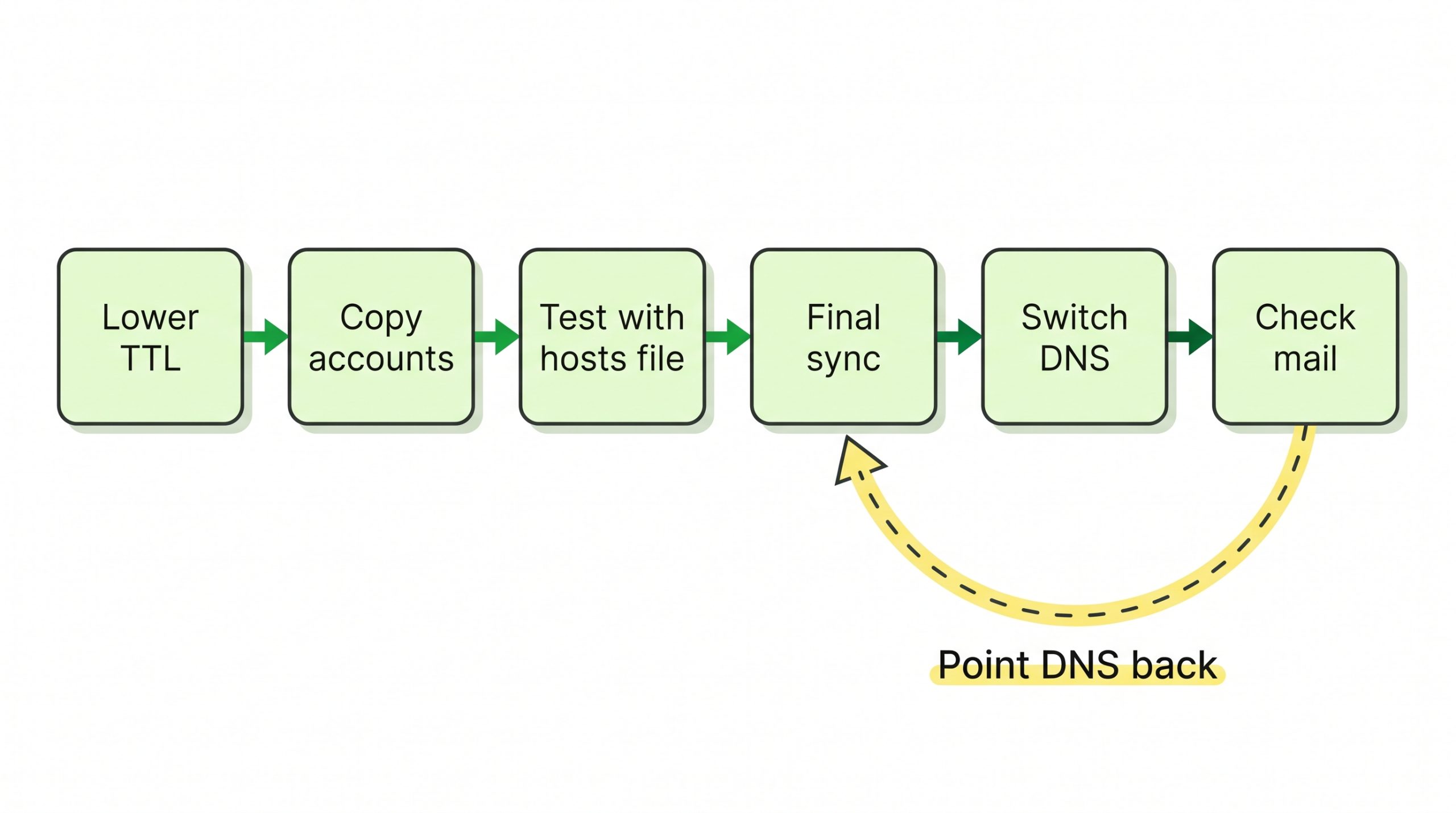
Figure 1. The cutover order: Lower TTL, Copy accounts, Test with hosts file, Final sync, Switch DNS, Check mail. Point DNS back is the rollback while the old account exists.
Mail needs one more pass after the switch. Plesk’s guide says to choose Re-sync mail messages after switching DNS or IP.
By contrast, cPanel’s Live Transfer accepts and queues mail on the source while it proxies traffic. Does the old shared mailbox hold any message that arrived after the switch? If so, copy it across before cancelling the plan.
To roll back, point DNS back to the old IP. After a cPanel Live Transfer, also unsuspend the account on the source server to stop the proxying.
What to Check After the Switch
| Check | Command or page | Expected result |
|---|---|---|
| Website record | dig @ns1.example.net example.com A | New server IP |
| Mail route | dig @ns1.example.net example.com MX | MX host on the new server, or your mail provider |
| Plesk objects | plesk-migrator test-all | No failed checks |
| Site from outside | Browser with the hosts line removed | Site loads from the new server |
| Two-factor authentication (2FA) login | cPanel login for each user | Each user has set up 2FA again |
| TTL | DNS zone editor | Back to its normal value |
Sources: cPanel Transfer Tool documentation (2FA not transferred); Plesk command line migration guide; BIND 9 manual pages.
The new server then needs its own first jobs, from SSH access to backups. Our owner’s checklist for managing your own dedicated server sets those out in order.
When to Stop and Hand Over
Pause before Step 4 and bring in managed support or the application vendor if any answer below is no:
- Can someone read and fix the errors that the check command or restore page reports?
- Are the applications free of hard-coded IP addresses and server paths?
- Does someone own DNS for every domain being moved?
FAQs
Does cPanel Live Transfer change MX records when mail is hosted elsewhere?
No. cPanel’s Transfer Tool page says the system does not update MX records for a domain that uses remote mail servers. Confirm them with the MX query in the checks table after the switch.
Why do API tokens stop working after a cPanel account restore?
Restricted Restore does not restore an account’s application programming interface (API) tokens, and cPanel says to recreate them after the restore. It also skips OpenID Connect links, so affected users re-link their identity provider.
Where the Move Leaves You
Your sites, databases and mail now run on a server you control.
| NEXT STEP Sizing the server that will receive these accounts? Compare processor, memory and storage options on our high-performance dedicated servers page. |